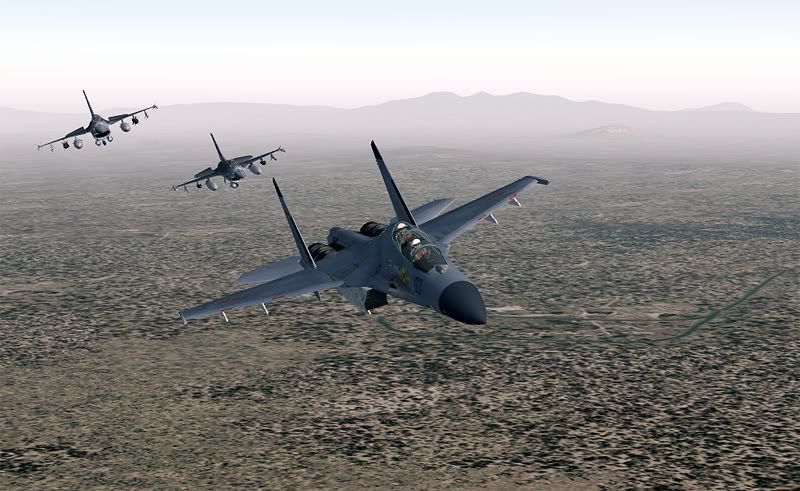
2. Download the Conversion tools 1.0 from the same page, and extract the two included .exe files to a newly created folder named ‘REC’ in your main My Documents folder.
3. Go record a flight with a single aircraft in FS, by using the ALT menu to access the new FS Recorder menu at the top of the screen. When you have finished your recording, save it as a .frc file inside the REC folder.
4. Open ‘Command Prompt’ (Start- Programs- Accessories) and enter the following:
‘cd My Documents\REC’
then
‘frc2ascii example.frc example.txt –m’
This will convert your recorded .frc file into an editable txt file. (Do not close the black Command Prompt window!)
5. Navigate to the REC folder, find the example.txt file and open it with wordpad.
You will find a heading that looks like this:
// Track 1
#Aircraft: "Vega 5C"
#StaticCGtoGround: 9.90000
#Data: latitude longitude altitude pitch bank heading onground velocityX velocityY velocityZ throttle1 throttle2 throttle3 throttle4 elevators ailerons rudder spoilers flaps gear lights parkbrake engine1 engine2 engine3 engine4 timestamp
6. Highlight the entire document, then copy and paste it as many times as you want formation aircraft in the document. (Say you want a wingman either side of your recorded aircraft, paste the copied text twice.)
7. Press CTRL+F and enter ‘Track’ to skip down to the first copied heading, rename the section ‘// Track 1’ to ‘// Track 2’ and amend the '#Aircraft: label to whatever aircraft you want from your aircraft folder. Note- the actual title must come from the aircraft.cfg of your chosen wingman’s aircraft folder- found on the second line of entry, eg:
[fltsim.0]
title=Vega 5C
sim=Lockheed_Vega
model=
panel=
sound=
texture=
kb_checklists=Lockheed_Vega_check
kb_reference=Lockheed_Vega_ref
atc_id=NR-105-W
atc_id_color=0xffffffff
ui_manufacturer=Lockheed
ui_type="Vega 5C"
ui_variation="Winnie Mae"
While in the aircraft.cfg, find the ‘static_cg_height’ line, and copy and paste the value into the #StaticCGtoGround: heading of your example.txt
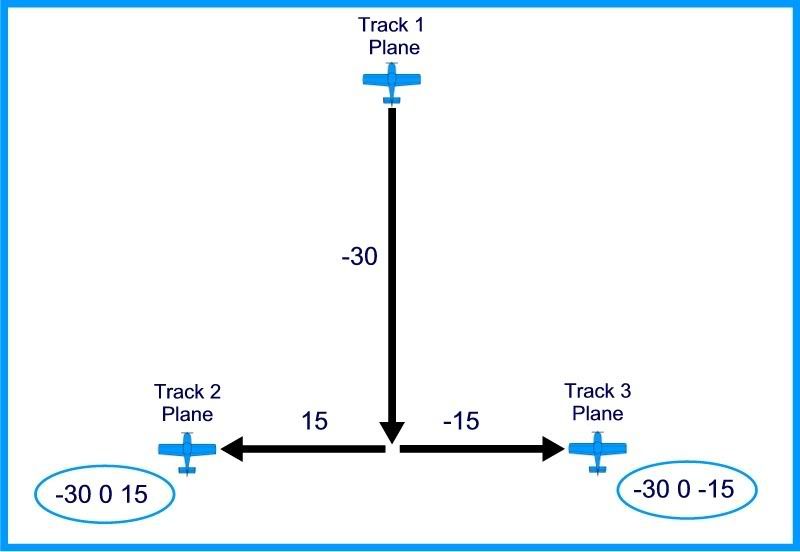
8. Now you need to reference the position in which your wingman aircraft is related to your lead aircraft. You do this by creating a ‘$Offset:’heading under the ‘timestamp’ line of the heading code as seen above.
An example of an offset heading would be:
‘$Offset: -30 0 15’
The 30 being horizontal distance from the lead aircraft
The 0 being the altitude distance from the lead aircraft’s height
The 15 being the distance infront or behind the lead aircrafts postion
Each one of these three values can be positive or negative, as show in this diagram:
9. Now comes the tricky bit- to make the offsets relative to the lead aircraft you add ‘pbh’ (pitch, bank, heading) to the end of offset line, eg:
$Offset: -30 0 15’ pbh
Otherwise the offsets are along the world axes, where x is longitude, y is altitude and z is latitude.
Try a few combinations like
$Offset: -30 0 15’ h
$Offset: -30 0 15’ bh
$Offset: -30 0 15’ ph
These can be less realistic in the sim, as the a/c behave more like a single unit, but I generally find adding the simple ‘h’ to the offset line creates the best result.
10. Finally, the last heading entry you will need to make is the ‘$TimeOffset:’, underneath the previous ‘$Offset’. All you need to add here is a setting in seconds, eg ‘$TimeOffset: 0.5’ so your wingman aircraft copys the manoevers of the lead aircraft’s with a 0.5 second delay in the sim to add a level of real life imperfection.
Note- (if you find the following confusing, then don’t worry). You may find that by adding a time offset, your wingman aircraft are lagging behind the lead aircraft at a far greater distance than you have set up in the original offset. To compensate for this distance loss, reduce the last offset value (distance infront of behind the lead aircrafts postion), from example:
$Offset: -30 0 15’ h
$TimeOffset: 0.5
to:
$Offset: -30 0 10’ h
$TimeOffset: 0.5
11. Repeat steps 7. to 10. by renaiming the third section to ‘// Track 3’ and adjust the offsets to suit your preference.
12. Save the txt file, and go back into Command Prompt to enter the following
ascii2frc example.txt example.frc –m
The conversion may take a while, depending on how many tracks you have copied and how long the recording is, but you know it has worked when you see the ‘conversion successful’ message appear.
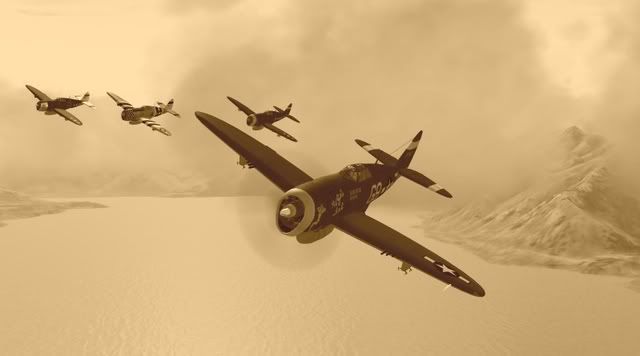
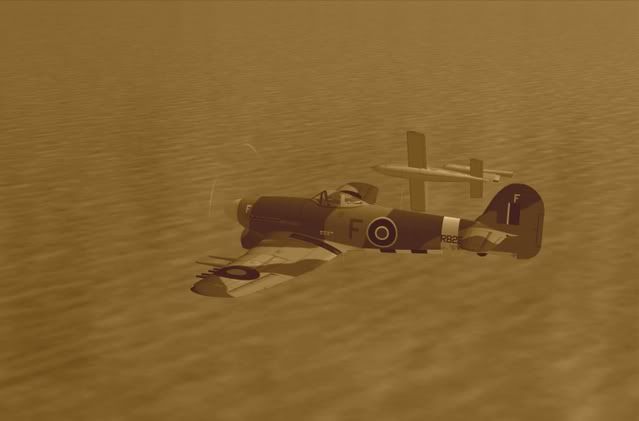
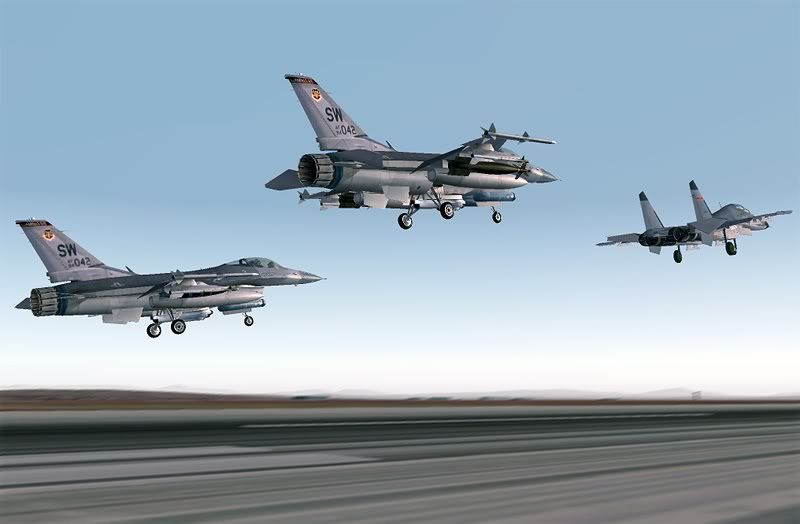
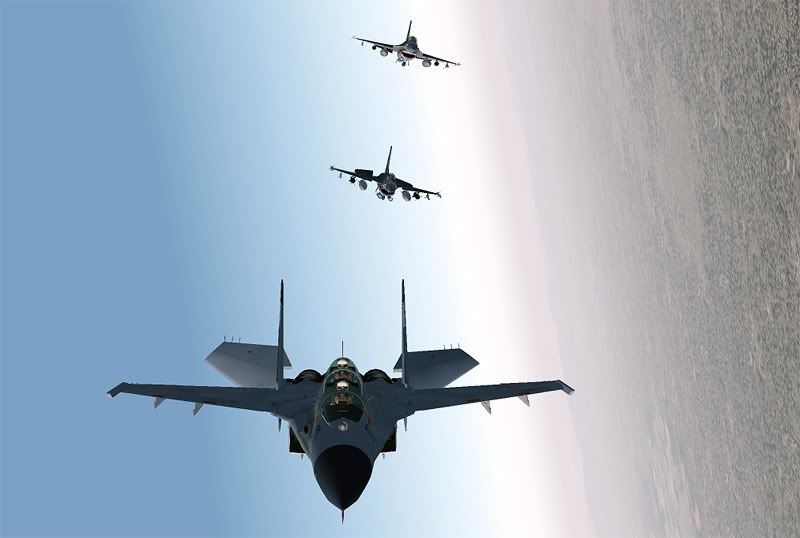
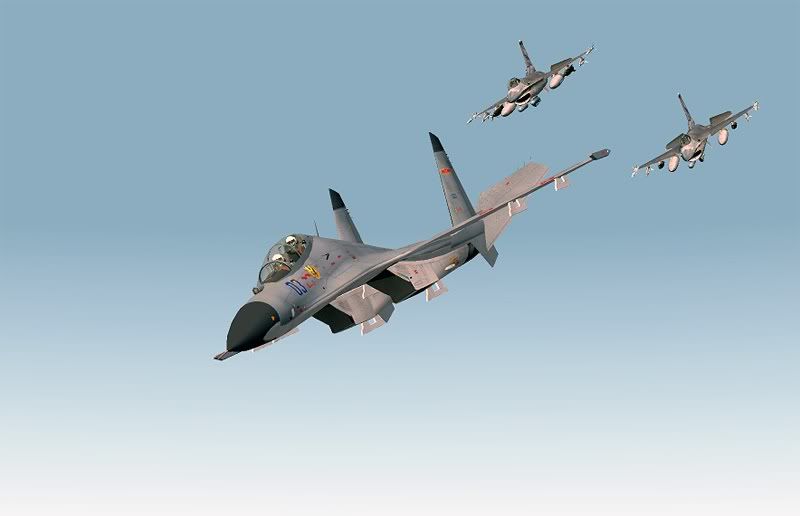
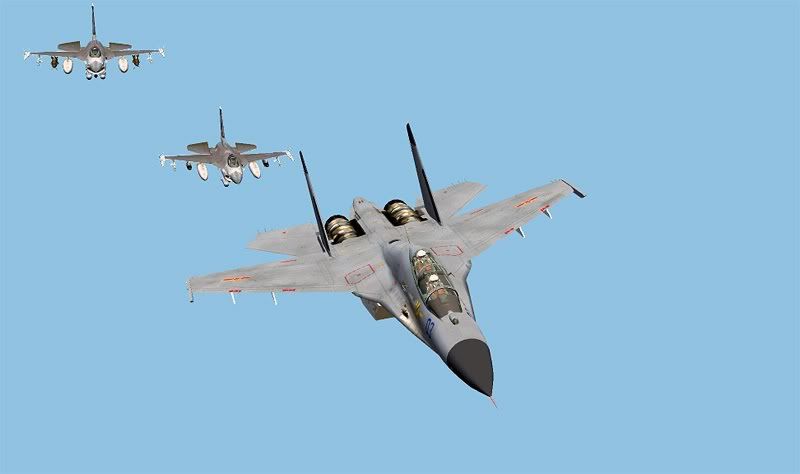
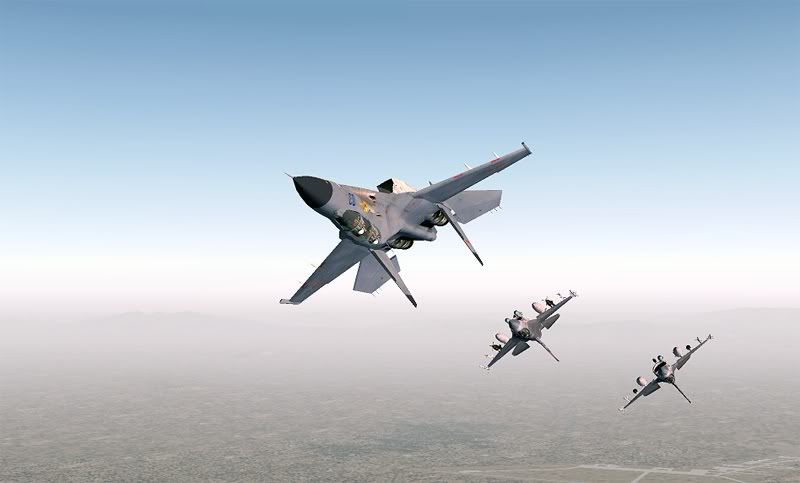
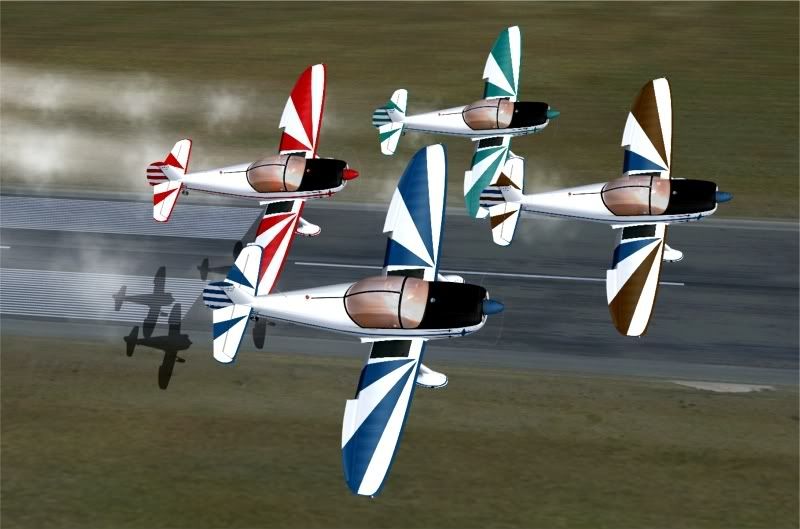
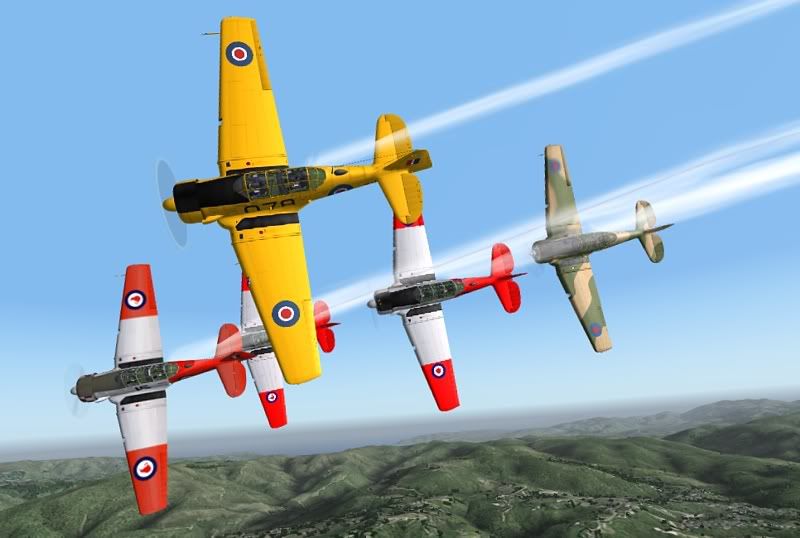
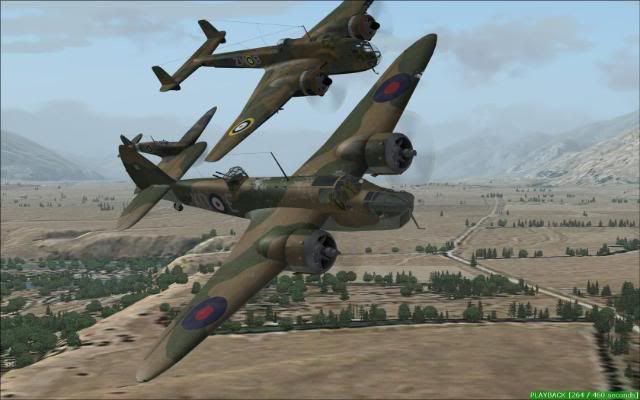
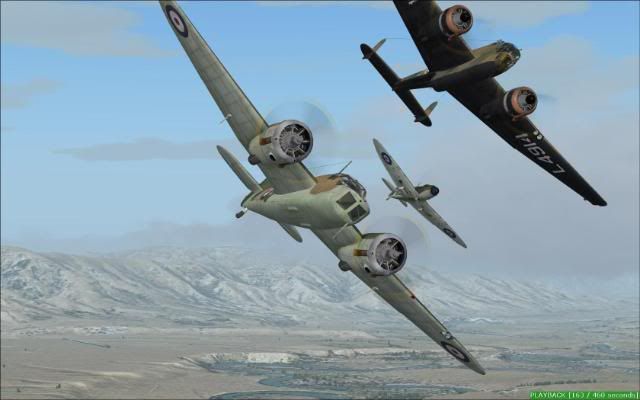
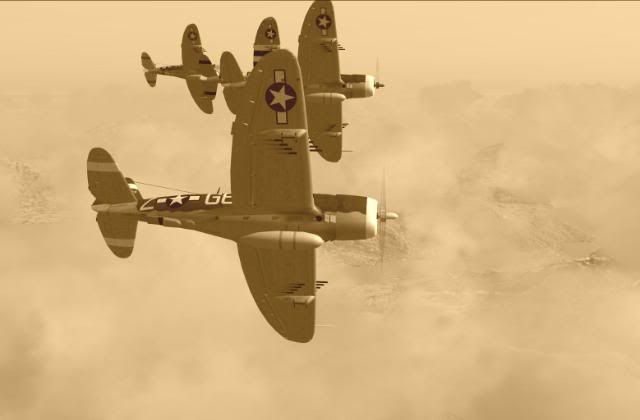
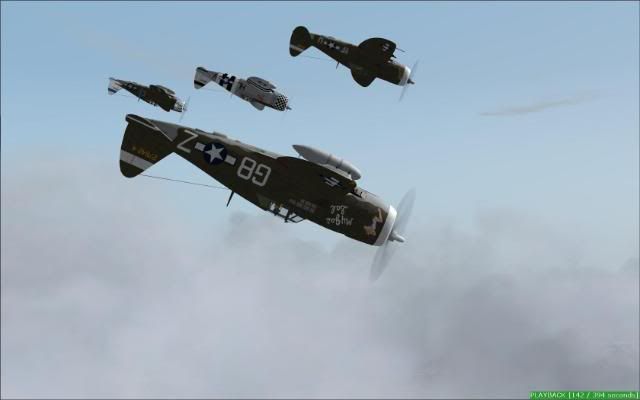
13. Go back to flight simulator, hit ALT and go back to the recorder module menu, select ‘Play’ and find the example.frc file that you have just converted. You will then be able to watch your formation play back with however many aircraft you have added and be able to take screenshots like these:
See these threads for original source information of this tutorial:
http://nzff.org/forum/viewtopic.php?t=5489
http://nzff.org/forum/viewtopic.php?t=5791
A big thanks to Charl who got me hooked on this new branch of the hobby, spent many posts explaining how the offsets worked, and advised me to post this guide for others.
--------------------------------------------------------------------------------------------------------------------------------------------
Also, please post below any offset examples for certain formations which others may wish to use… for example, here is my four man Harvard offset code, using the alphasim models:
// Track 1
#Aircraft: "ALPHA T-6 Texan RNZAF NZ1015"
#StaticCGtoGround: 5.44000
#Data: latitude longitude altitude pitch bank heading onground velocityX velocityY velocityZ throttle1 throttle2 throttle3 throttle4 elevators ailerons rudder spoilers flaps gear lights parkbrake engine1 engine2 engine3 engine4 timestamp
// Track 2
#Aircraft: "ALPHA T-6 Texan RNZAF NZ1057"
#StaticCGtoGround: 5.44000
#Data: latitude longitude altitude pitch bank heading onground velocityX velocityY velocityZ throttle1 throttle2 throttle3 throttle4 elevators ailerons rudder spoilers flaps gear lights parkbrake engine1 engine2 engine3 engine4 timestamp
$Offset: 0 -2 1 h
$TimeOffset: 0.26
// Track 3
#Aircraft: "ALPHA T-6 Texan RNZAF NZ1053"
#StaticCGtoGround: 5.44000
#Data: latitude longitude altitude pitch bank heading onground velocityX velocityY velocityZ throttle1 throttle2 throttle3 throttle4 elevators ailerons rudder spoilers flaps gear lights parkbrake engine1 engine2 engine3 engine4 timestamp
$Offset: 10 00 2 h
$TimeOffset: 0.16
// Track 4
#Aircraft: "ALPHA T-6 Harvard NZ1078"
#StaticCGtoGround: 5.44000
#Data: latitude longitude altitude pitch bank heading onground velocityX velocityY velocityZ throttle1 throttle2 throttle3 throttle4 elevators ailerons rudder spoilers flaps gear lights parkbrake engine1 engine2 engine3 engine4 timestamp
$Offset: -10 00 2 h
$TimeOffset: 0.21


 No escorts.



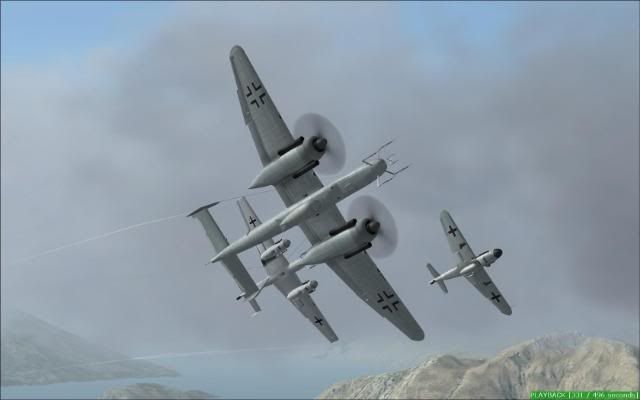
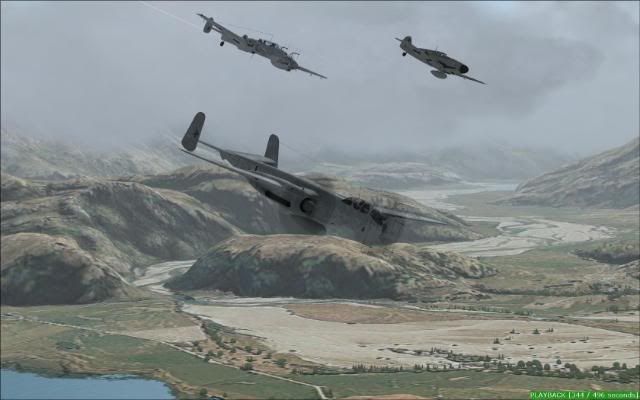
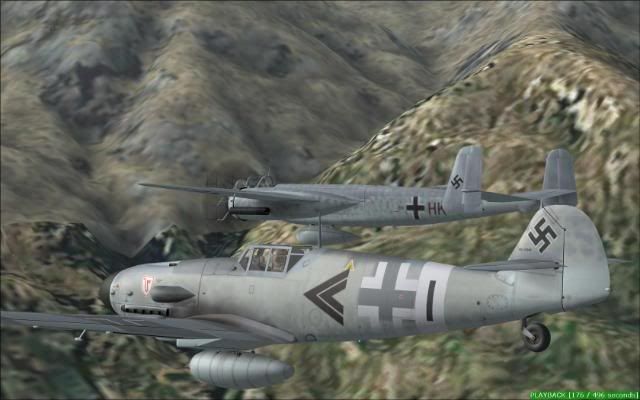

 if ya had that collection at Wanaka this year ! umm
  Ian Brodie would be over the moon ! .... KATCHING$