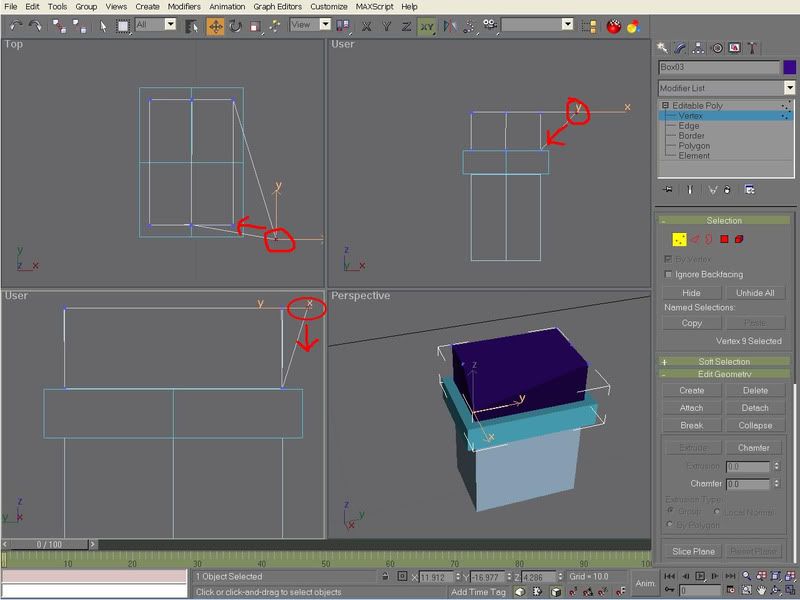
A couple of things I notice, first you don't have a Transform gizmo visible. This may be easier with the gizmo turned on -- from memory, press 'x'.
Also, 'restrict to XY plane' is turned on (just under the 'help' menu). This is from the help system:
QUOTE
The Restrict to XY Plane button, available from Restrict to Plane flyout, lets you limit all transformations (move, rotate, scale) to the XY axes (by default, parallel with the Top view).
You can also select planar constraint by using the Transform Gizmo. Instead of clicking the tripod heads, choose the corner marks that are part of the gizmo. You can cycle through constraints by selecting the other sets of corner marks to choose the alternate planes.
When you move an object along a plane that is head-on to your view, the object moves along the single available axis shown in the view.
Note that constraints are set on a transform-by-transform basis, so select the transform before you select the axis constraint. If you do not want the constraints to change, turn on Customize menu > Preferences > General tab > Reference Coordinate System group > Constant.
The axis constraints are stored separately at object and sub-object levels. If you set these three controls one way while in sub-object mode and another way while in object selection level, when you return to sub-object mode, they're restored to the way they were previously set. For example, if you're using XY constraints at object level, then switch to sub-object level and use Z constraint, when you return to object level, XY will be restored.
Snaps can conflict with Restrict to XY Plane. Go to Customize menu > Grid and Snap Settings > Options > Translation to find the Use Axis Constraints check box. When this is off, Snaps take precedence over axis constraints.[/quote]
 by NZ255 » Wed Jun 04, 2008 11:01 pm
 ... http://www.windowlight.co.nz/


 Thanks for that Robin, and the translation HCP